Creating a WelcomeHome Message Template with a trackable SalesMail video
With WelcomeHome's marketing automation features, you can set up trackable SalesMail video messages to automatically go out after triggers such sending out an intro video after a new lead comes in! Full instructions on setting up automations can be found in this article from WelcomeHome's support center. You can set up WelcomeHome Message templates with SalesMail videos that can be used in those automations or by your team members on an as needed basis. Best of all, your SalesMail real-time push notifications will show who watched your video and help you go after those hot leads!
Here are the instructions to set up a WelcomeHome Message template that can be used in those automations (or by the team as needed) in such a way that when the video is viewed, SalesMail will tell you the name of the prospect the video went to!
1. An admin user in Welcome Home should navigate to 'Global Setup' and choose 'Message Template' from the left.
2. Click the button in the upper right called 'New Message Template'
3. Give the template a title and subject, and check the 'Available in email modal' checkbox if you want team members to be able to use the template. We recommend using the word video in the subject line. Here is an example. Note that you can use merge elements to personalize the message:
4. To insert a link to your SalesMail video, log into the SalesMail portal, go to 'My videos' or 'Team Videos' and click the share button next to the video you want to share.
5. Click the dot dot dot menu (item 1 in screenshot below) in the 'Share Your SalesMail' section. Select the 'WelcomeHome Template' (item 2 below) and be sure to check the box at the very bottom that says "Use Merge Tags When Available" (item 3 below).
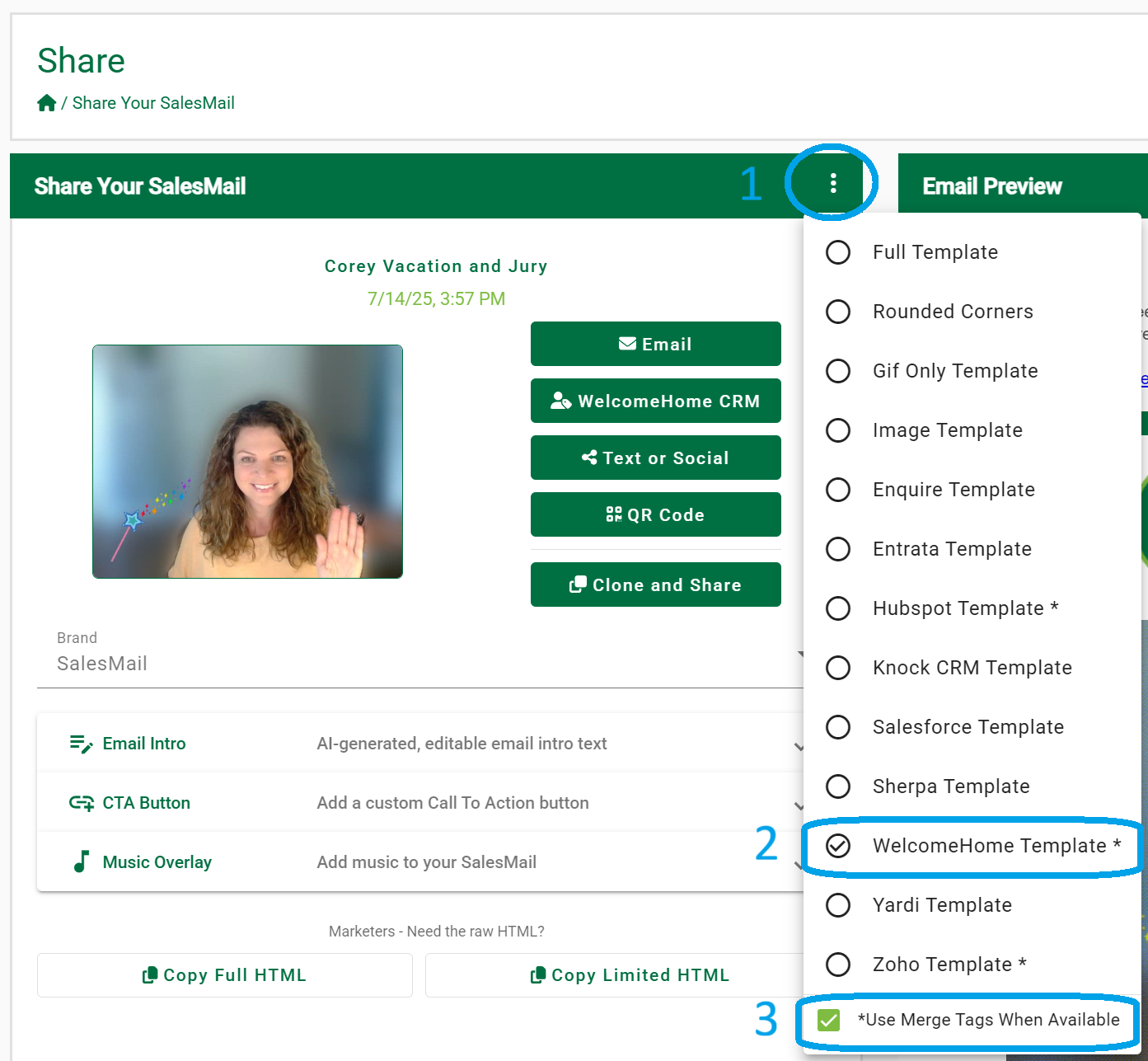
6. Right-click the animated gif in the Email Preview section on the right and select 'Save image as' to save it to your computer for later.
7. Right click on the 'See your personal message here' link and select 'Copy link address'
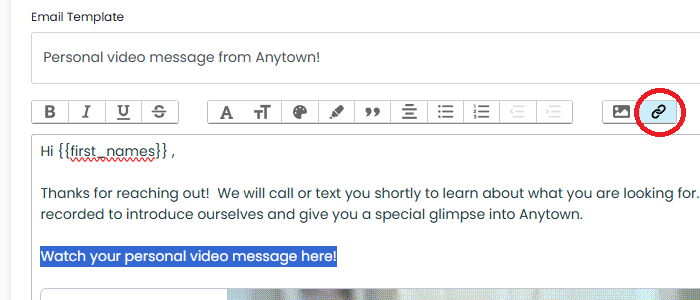
8. Go back to your Message Template in WelcomeHome and type "Watch your personal video message here!" in the body of your email. Highlight the text and click the link button above (circled in red below).
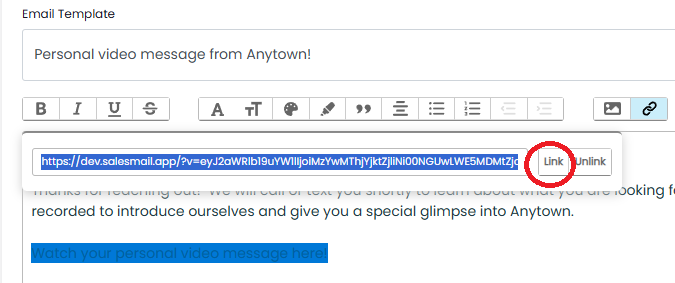
9. Paste the copied URL into the link box and hit 'Link' to save it.
10. Now we will add the animated gif from your SalesMail and make it a link. Click the picture icon in the email editor:
11. Choose the animated gif of your video that you downloaded to your computer in step 5.
12. Once the gif is added to the message template, click on the gif to highlight it and then click the link button just like you did in step 6.

13. Paste the SalesMail video URL into the box and hit 'Link' to save it.
14. Make any final changes to your Message Template, then click Create Message Template. Now you can use this template in any automation you set up, or if you selected the 'Available in email modal' option, team members can use it as well.
When people view the SalesMail video, your SalesMail push notifications, Activity Feed, and Video details will show you who watched it!
Related Articles
SalesMail WelcomeHome Integration
SalesMail WelcomeHome Bidirectional Mobile App Integration You can use the SalesMail WelcomeHome integration CRM button at the bottom of your SalesMail mobile app to search for a prospects/influencer in WelcomeHome, send them a new or Favorite ...Get SalesMail Certified and become a SalesMail Expert
We’re excited to recognize the achievements of our awesome SalesMailers through our SalesMail Certification Program! Certified users receive a digital badge you can share on LinkedIn, in your email signature, or on social media. There are three ...SalesMail Portal: How to Share a Video (4 min.)
Click the icon at the bottom right of the video to watch in full screen. 1. Log into the SalesMail Desktop Portal using your work email and the same password you use in the SalesMail mobile app. 2. Click the 'My Videos' option on the left. 3. Find ...Make your mailers and newsletters "talk": Add a SalesMail video QR code!
In an era where digital engagement is becoming increasingly vital, integrating technology into traditional communication methods can significantly enhance their impact. One such innovation is the inclusion of SalesMail video QR codes in mailers or ...SalesMail automatically creates video names for you
We're excited to announce a new feature in SalesMail: AI Video Naming! This innovative addition is designed to save time and make managing your video content simpler and more intuitive than ever. What is AI Video Naming? With AI Video Naming, ...